Make your first game
Your first game is basic: a few shapes and one thing to do. It works quickly, so your child sees real results and wants to build more.
Example first games
Section titled “Example first games”We made each game from the starter template with one sentence. We answered every question with “You choose.” Nothing was changed afterwards. The time runs until Claude said it was done. Your child’s answers add a few minutes.

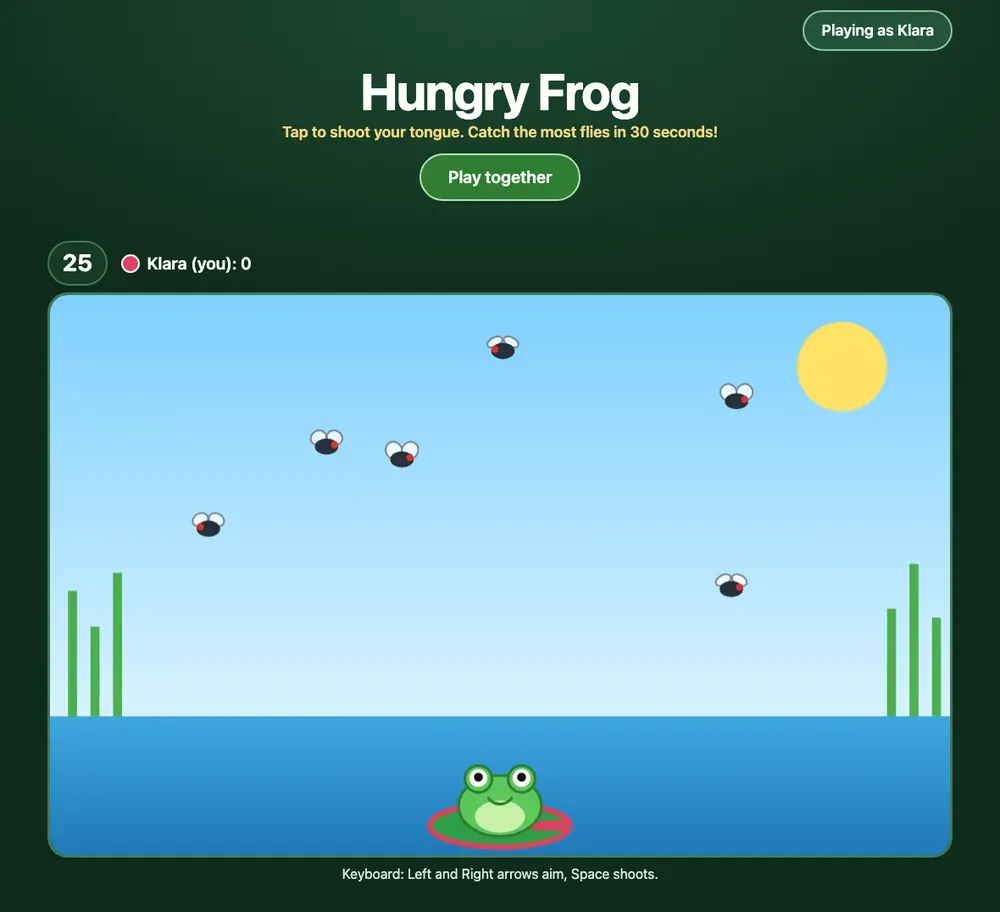
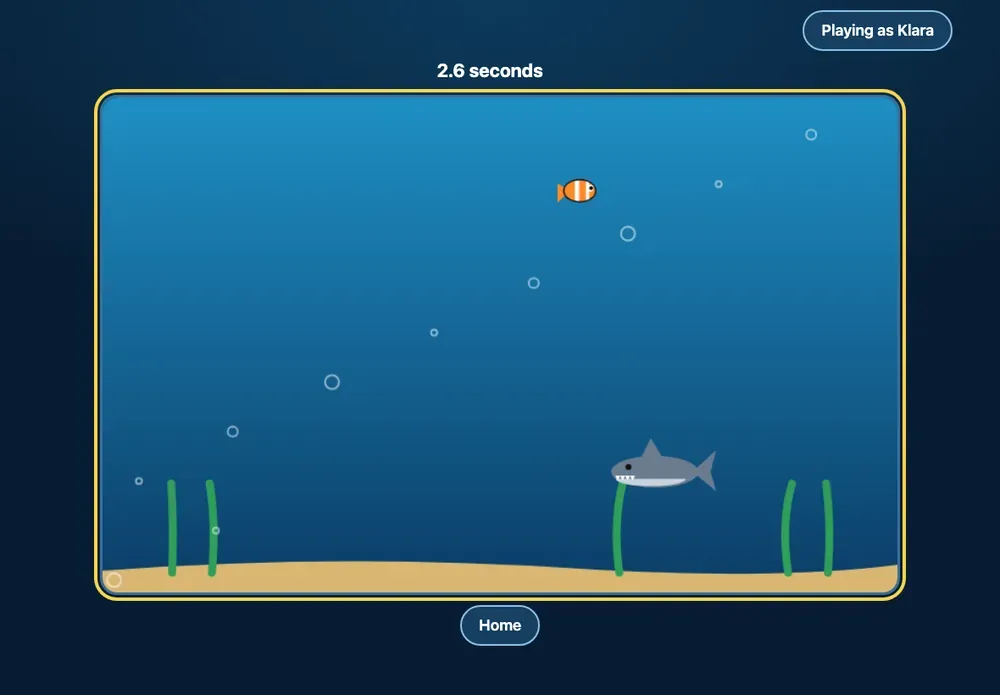
Tell Claude your idea
Section titled “Tell Claude your idea”Your child says the idea in one sentence. You type it, or your child does.
Claude asks a few short questions, one at a time. Who are you in the game? How do you win? Which colours? Let your child answer. If they are stuck, Claude offers choices.
Let your child talk
Section titled “Let your child talk”Your child can talk instead of typing. Your device turns speech into text in any text box:
- On an iPad or iPhone, tap the microphone key on the keyboard, then talk.
- On a Mac, turn on Dictation once, in System Settings under Keyboard. Then press the dictation shortcut and talk.
The words appear in the box. The grown-up checks them and sends them.
To talk an idea through first, use voice mode in the Claude app. It is a separate chat on the grown-up’s account, so stay with your child. Tap the sound-wave icon next to the chat box. At the end, ask Claude to write the idea as one short paragraph, and paste it into Claude Code.
While Claude works
Section titled “While Claude works”Claude took four to six minutes in our tests. Watch it work:
- It edits the game’s files and shows each change.
- It runs tests, small checks that the game still works. If one fails, Claude fixes it and runs them again. That is normal.
- It may ask a question. Read it together and answer.
- It says when it is done. A Create PR button appears.
Look at the change
Section titled “Look at the change”Read what Claude changed, together. Is it what your child asked for? If not, say so before you merge:
Claude changes it on the same branch.
Merge the change
Section titled “Merge the change”A pull request asks to add the change to your game. The merge adds it.
- In Claude, click Create PR. GitHub opens the pull request.
- Merge the change:
- Click Merge pull request.
- Click Confirm merge.
Your first game is now in your repository. It is not on the web yet. The next page puts it there.
Next: Put it on the web.